Best AI Keyboard App for iPhone
Typing on a phone makes writing professional emails, social captions, or essay outlines slow and prone to errors. A smart AI keyboard changes this by building an advanced writing coach directly into your iOS keyboard. Write, translate, and fix grammar inside any application without switching apps.
The power of an integrated keyboard assistant
Copying and pasting text back and forth between your chat app and your email client is a hassle. With the GenAI Smart Keyboard, the assistant lives inside your native keyboard interface. Tap a button inside Mail, WhatsApp, or Twitter to automatically rephrase text, translate languages, draft long replies, or scan and resolve grammatical mistakes instantly.
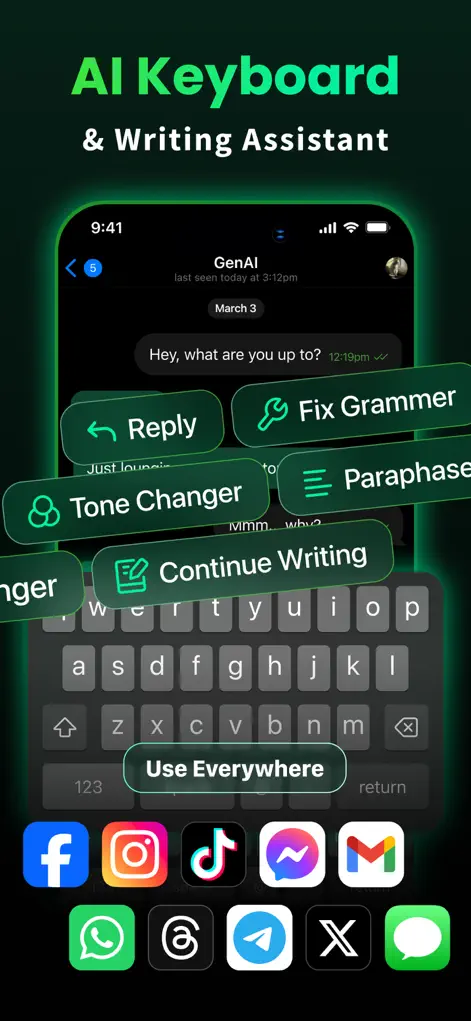
Step-by-Step: Best AI Keyboard App for iPhone
- Enable GenAI in iOS Settings. Go to Settings > General > Keyboard > Keyboards > Add New Keyboard and select GenAI.
- Switch keyboards in any app. Tap the Globe icon on your keyboard to switch to the GenAI typing assistant interface.
- Choose a writing prompt. Tap one of the built-in prompts like 'Professional Email Outline' or 'Polite Reply' to write templates instantly.
- Scan and fix errors. Select your draft and let the AI instantly analyze and rewrite it with perfect spelling and tone.
Where an AI keyboard helps and where you should still type it yourself
The keyboard is most useful for text you would otherwise rewrite several times: a reply that needs to sound polite, a message in a language you are less confident in, or a rough draft full of typos. Having the rewrite appear in the same field you are already typing in is the main time saver.
It is less suited to text that must be exact. Addresses, order numbers, names with unusual spellings, and technical terms can be changed by a rewrite, so read the result before you send it. The same goes for translations: they are fine for everyday messages, but for contracts, medical instructions, or anything official, have a fluent speaker or a professional check the wording.
iOS also limits third-party keyboards in some places. Password fields and certain secure input screens switch back to the standard Apple keyboard, which is expected behaviour rather than a fault.
A simple routine for writing messages with the keyboard
Most people get better results by writing a quick, messy version first and letting the AI tidy it, rather than asking it to write from nothing. Your draft carries the facts and intent; the rewrite handles tone and grammar.
- Type the key points in your own words, even as fragments.
- Switch to GenAI with the globe key and pick the prompt that matches the goal, such as a polite reply or a grammar fix.
- Read the suggestion and check that names, dates, and numbers survived unchanged.
- Trim anything that sounds unlike you before sending, especially in personal chats.
- Switch back to your regular keyboard for quick replies that do not need rewriting.
Start Chatting with AI
GenAI is free to download on the App Store. Ask questions, generate images, or enable the smart keyboard instantly.
⬇ Download GenAI AppFrequently Asked Questions
Does the keyboard log my keystrokes?
No. The keyboard processes commands locally and respects your privacy. No personal input is tracked or stored.
Does it work in WhatsApp and Gmail?
Yes, it works inside any input field in all iOS apps including Messages, Slack, WhatsApp, and Mail.
Can the keyboard translate languages?
Yes, the keyboard has real-time translation prompts that translate your typed text into dozens of languages.
GenAI is an AI-powered assistant. Information generated by the chatbot should be verified, and images or documents scanned should not contain confidential personal data.