AI Image Generator from Text
AI art generators allow you to create photos, drawings, and 3D scenes simply by describing what you want. However, writing vague prompts yields generic results. Learning how to specify details, lighting, and styles unlocks pro-grade illustrations instantly.
Moving from basic descriptions to pro artwork
When you write a simple prompt like 'a forest', the AI has to guess everything, often creating a boring stock photo. A professional prompt defines the subject, the background environment, the lighting type, the color palette, and the specific art style (e.g., 'concept art, misty pine forest, cinematic lighting, cool blue tones, digital painting style'). GenAI's text-to-image engine gives you the tools to input these pro details in seconds.
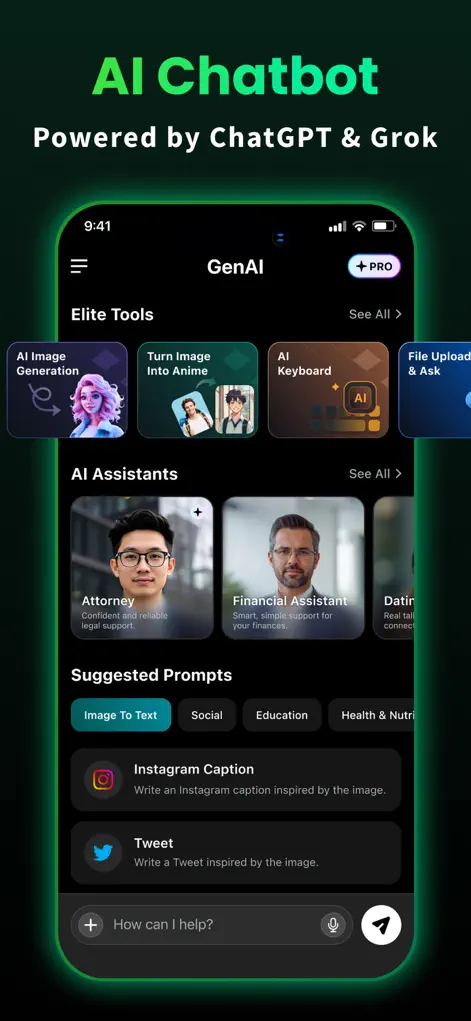
Step-by-Step: AI Image Generator from Text
- Define a clear core subject. Specify the focal point, such as 'an astronaut riding a horse' or 'a futuristic skyscraper'.
- Add style and medium keywords. Choose a visual medium, such as 'oil painting', '3D render', 'watercolor', or 'photorealistic landscape'.
- Describe the light and environment. Specify how the scene is illuminated, e.g., 'sunset glow', 'dramatic side-lighting', or 'cyberpunk neon'.
- Select the desired aspect ratio. Choose vertical for wallpapers, square for profile icons, or horizontal for headers, then generate.
What text-to-image does well and where it struggles
Text prompts work well for moods, scenes, concept art, wallpapers, illustrations for posts, and quick visual ideas you want to explore before committing to a design. The more clearly you describe the subject, setting, light, and style, the closer the first result usually lands.
AI image models commonly have trouble with readable text inside the image, exact logos, precise counts of objects, hands and fingers, and complicated scenes with many interacting people. If you need a poster with a headline, generate the artwork without text and add the words afterwards in an editing app.
Avoid prompts that copy a real person's likeness, a trademarked character, or a named living artist's style for anything you plan to publish or sell. Describe the qualities you like instead, such as bold ink outlines or soft pastel colours.
Fixing prompts that give the wrong result
When an image comes out wrong, change one part of the prompt at a time so you can see which words make the difference. Rewriting the whole prompt at once makes it hard to learn what worked.
- Too generic: add a specific setting, time of day, and colour palette.
- Wrong style: put the medium near the start, for example 'watercolour illustration of' rather than adding it at the end.
- Cluttered: remove secondary objects and describe one main subject.
- Wrong framing: say 'close-up', 'wide shot', or 'viewed from above', and check the aspect ratio matches where the image will be used.
- Stuck for ideas: start from a Prompt Library template and edit its details.
Start Chatting with AI
GenAI is free to download on the App Store. Ask questions, generate images, or enable the smart keyboard instantly.
⬇ Download GenAI AppFrequently Asked Questions
Are the generated images unique?
Yes, every image is generated from scratch based on your description, creating a completely unique file.
Can I download the images in high resolution?
Yes, you can save the generated graphics directly to your iPhone's camera roll in high resolution.
What styles are supported?
The engine supports photorealism, cartoon, digital concept art, vector illustrations, oil painting, and 3D renders.
GenAI is an AI-powered assistant. Information generated by the chatbot should be verified, and images or documents scanned should not contain confidential personal data.